

Editor's note · The B2B customer perspective
“It says it is done, but where can I check the result?” This is a question customers may encounter when bringing AI into their work. Even if an agent builds the tools it needs, that capability is unlikely to make everyday work easier unless the person using it can see what was created and find it again for the next task.
This article focuses less on tool creation itself than on making its results recognizable and usable. As you read, consider the customer's question: “Can I check the result and take the next step without asking a developer again?” That perspective helps explain why seemingly small interface improvements matter to continuity of work and trust.
Geny agents on the XGEN Agentic AI Platform build the tools they need in the middle of a conversation, yet in chat only a brief "done" marker flashed by, so users could hardly tell that a new tool existed or where to find it. Fixing this over three days, we saw our assumptions overturned three times. The tools were not on the canvas, there was not one chat screen but two, and the screen should never have been guessing what the runtime meant.
The agent was growing, but users could not see it
When a Geny agent lacks a capability it needs, it adds one itself. It can attach nodes to its own workflow graph, or write a Python script and register it as a new tool. This is exactly the feature our earlier post described as building a tool when the one you need does not exist.
In the actual chat screen, though, that moment barely showed. When a tool was built, only a small chip saying the tool call had finished flashed by. Users had no way of knowing what had just been created, or where they could see it again.
For an agent that grows on its own, this is not a minor inconvenience. If users cannot see what the agent changed, they find it hard to trust the agent with their work. On September 9 we started work on showing, in chat, the tools an agent had built.
Our first answer was the canvas
On the XGEN Canvas, the tools connected to an agent appear as nodes. So at first we assumed a link in chat should simply point to that node on the canvas.
Following the code showed that assumption was wrong. The only nodes that attach to the canvas are the ones an agent adds by editing its own graph. A tool built during a conversation is stored on the server as a spec, and its script sits in the agent's Workspace. The one place a user can see that tool is the [Tools] tab of the agent's detail view.
We moved the link target from the canvas to the [Tools] tab, and then found that the tab had no address. The detail view only opened when you clicked a card in the list, and it always started on the overview tab. So we created a new address that means "open this agent's detail view on the [Tools] tab".
Even opening a single address had three traps. If the screen applied the address on every render, pressing Back bounced you straight back into the detail view. The list is paginated 24 at a time, so the agent might not be on the current page. If the address stayed in place after going back, a refresh would open the detail view again. We read the address once on entry, fetched the agent separately when it was not in the list, and cleared the address on the way out.
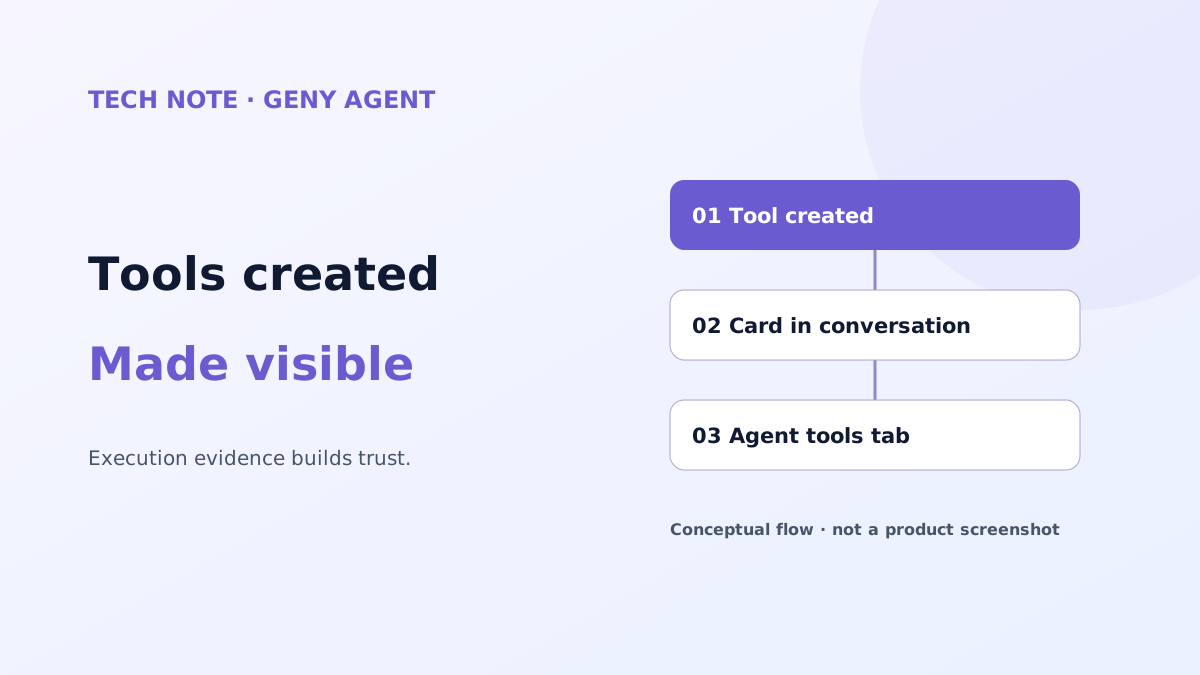
In chat, we left a "Tools built in this conversation" card under the answer that built the tool. We set one rule for it. The card appears only when the tool was actually built. If the tool is still being built, failed verification, or has no known name, we do not draw it. We judged that a link to a tool that does not exist is the worst possible experience.
There were two chat screens
On September 10, while the first change was in review, a bigger problem came into view. XGEN had two screens for talking to an agent. One was the chat you enter by pressing [Run] in the library, and the other was the chat that follows right after creating a new agent.
The two looked alike, but their code was entirely separate. As a result, file attachments, tool execution chips and the full log view existed on only one side. If we added the built-tool card to one screen, the other would be missing it. That made it clear to us that as long as there are two screens, features will keep splitting in two.
So we removed the chat screen that followed agent creation. When the agent creation form finishes, it now moves to the existing chat screen in exactly the same way as pressing [Run] in the library. Only a few fields are handed over, such as the agent id and name, but if even one is missing the chat falls back to "no conversation in progress". So we pinned that shape down in one small function and locked it in with tests.
The useful parts of the removed screen's right-hand panel moved to the existing chat. They are the agent name and a shortcut to the canvas, the number of times the agent changed its own structure in this conversation, its instructions, and the tools the agent can use. The panel reloads after every exchange, and whenever the agent changes its own graph. If a capability it just added does not show up in the panel right away, "it grows on its own" is not visible.
The screen was guessing what the runtime meant
When we bundled the two changes into one review, feedback came back that the way the screen worked did not match the official way of the agent runtime. Geny's runtime, and the event contract shared by the desktop app, the CLI and the VS Code extension, live in public repositories. Reading them, we found three places where we had drifted.
| What | Our first approach | The runtime's official approach |
|---|---|---|
| Number of self-changes | The screen interpreted tool-call inputs and counted them | Count the event the server sends each time the graph actually changes |
| List of available tools | Read the canvas nodes | The server provides the tools actually given to the session, grouped |
| Name of a built tool | Used the name written in the tool-call input | Use the name and "created or updated" returned in the tool's result |
All three were places where the screen had assumed "it is probably like this". Guesses work for now. But the moment the runtime changes the shape of its inputs even slightly, the screen quietly shows wrong numbers without raising any error. So in all three places we switched to receiving and drawing the values the runtime officially reports. The tool list also came to show correctly even for agents with no nodes on the canvas. A few days later this part of the panel was refined once more, and it now shows the tools the agent built itself and what it attached through self-evolution separately.
This is where our thinking changed the most. At first we asked "what should the screen show?"; now we first look for "how does the runtime report this?". Because the desktop app and the CLI receive the same event, counting by a different rule only on the web screen would make the same agent tell a different number on each screen.
Where we stumbled and what we learned
We shipped on September 11 and verified everything on the development server on September 15, but it did not work the first time. On the first deployment, the built-tool card and chips did not attach. Some of Geny's tool events were missing a run id, while the screen was pairing events with answers by that id. Only after we changed the screen once more to collect tool events per answer regardless of run id did the card appear in its place. Code checks and unit tests had all passed; the problem surfaced only when we talked to a real agent on the development server.
Automated checks also caught us twice. The XGEN frontend requires every new element and string on a screen to be registered in a contract file, and the checker read even quoted Korean text inside code comments as screen copy. It looked like a tedious rule, but because screen elements are gathered in one contract, we could also clean up the eight elements and usage scenarios of the removed screen there without missing any.
Looking back, we learned three things.
First, the more an agent grows on its own, the more it needs to leave visible traces of that growth in front of the user. Trust comes less from the capability growing than from the user being able to confirm what grew.
Second, when two screens do the same job, features keep splitting in two. Merging the screens before adding a new feature to one of them turned out to be faster in the end.
Third, a screen should not guess what the runtime means; it should receive what the runtime officially reports. Guessed code raises no error when it is wrong, so it is found later.
If your team is bringing agents that build their own tools into a product, we suggest designing not only the agent's capabilities but also how users get to see the moment a capability appears. We learned that order by walking it backwards this time.
Editor's perspective · Adoption decisions and operating agreements
Customers want more than a statement that tool creation is supported: they want to see an actual work request lead to a usable result. In a PoC, consider testing a customer's work scenario end to end: request tool creation, confirm success or failure, inspect the result, then find and use it again. Check whether users can find the same result from different screens and whether failed operations could be mistaken for completed ones.
Making a result visible and making a generated tool safe to run are separate concerns. Who validates generated code and tools, who may use them, and who manages changes or problems must be agreed separately for the customer's environment. The improvements described here do not establish that all those operating requirements have been met. A meaningful starting point is helping the person doing the work understand what was created and where to check it, so they can move on to the next task.